Secrets Manager
We use AWS SecretsManager as our main storage for application secrets.
Steps
flowchart LR
  A[1. Create a new secret]
  B[2. Update value of secret];
  C[3. Use secret]
  A --> B --> C
Step 1: Create a new secret
Edit the secrets-property of the SecretsManager module.
In this example, we add a new secret named MY_NEW_SECRET:
| secretsmanager.tf | |
|---|---|
Create a Pull Request to Terraform apply this change.
Step 2: Update value of secret
- Log in to the AWS Account's console: https://bymoslo.awsapps.com/start
- Navigate to AWS Secrets Manager.
- Navigate to the secret you just created (e.g. in this example
MY_NEW_SECRET). - Click Retrieve secret value.
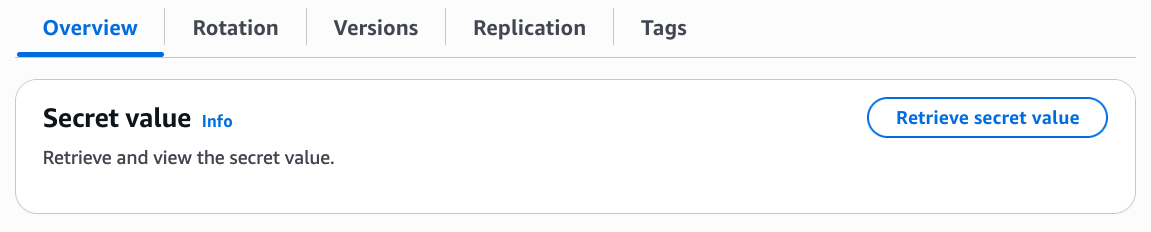
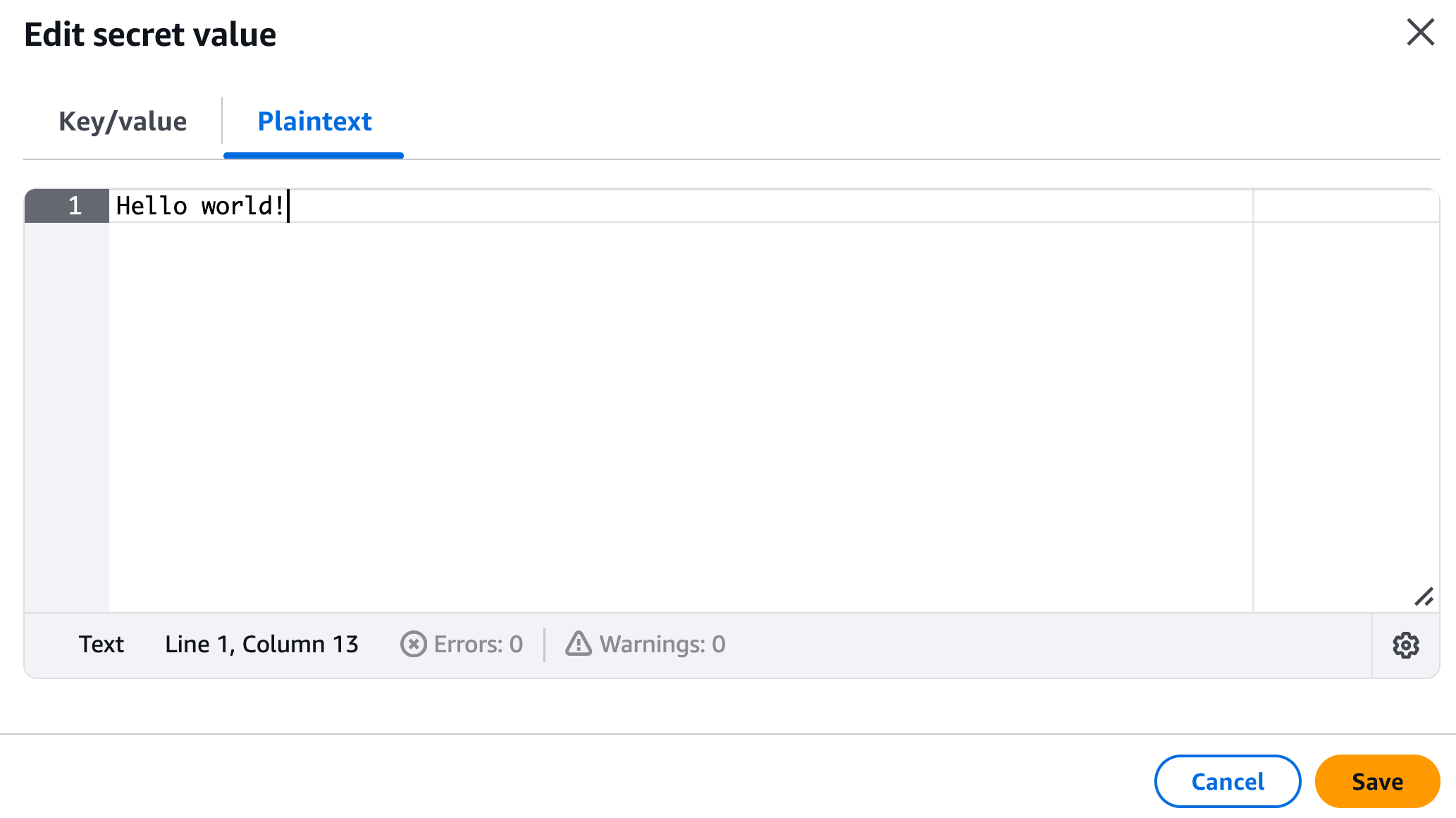
- Click Edit.
- Update the value and press Save.
Step 3: Use secret value in application
ECS Fargate
To use this secret in an existing Fargate, add a new entry in secretsmanager_secrets that references to the secret ARN from the SecretsManager module from step 1.
| main.tf | |
|---|---|
After this change has been applied, the secret value will be available as an environment variable.
In this example, the secret value will be reachable under the environment variable MY_NEW_SECRET.
AWS Lambda Function
To use this secret in an existing Lambda Function, we have to retrieve the secret value by using the data source aws_secretsmanager_secret_version, and feed its output to environment_variables:
After this change has been applied, the secret value will be available as an environment variable.
In this example, the secret value will be reachable under the environment variable MY_NEW_SECRET.